BRAND SETTINGS
Manage team members
7 min
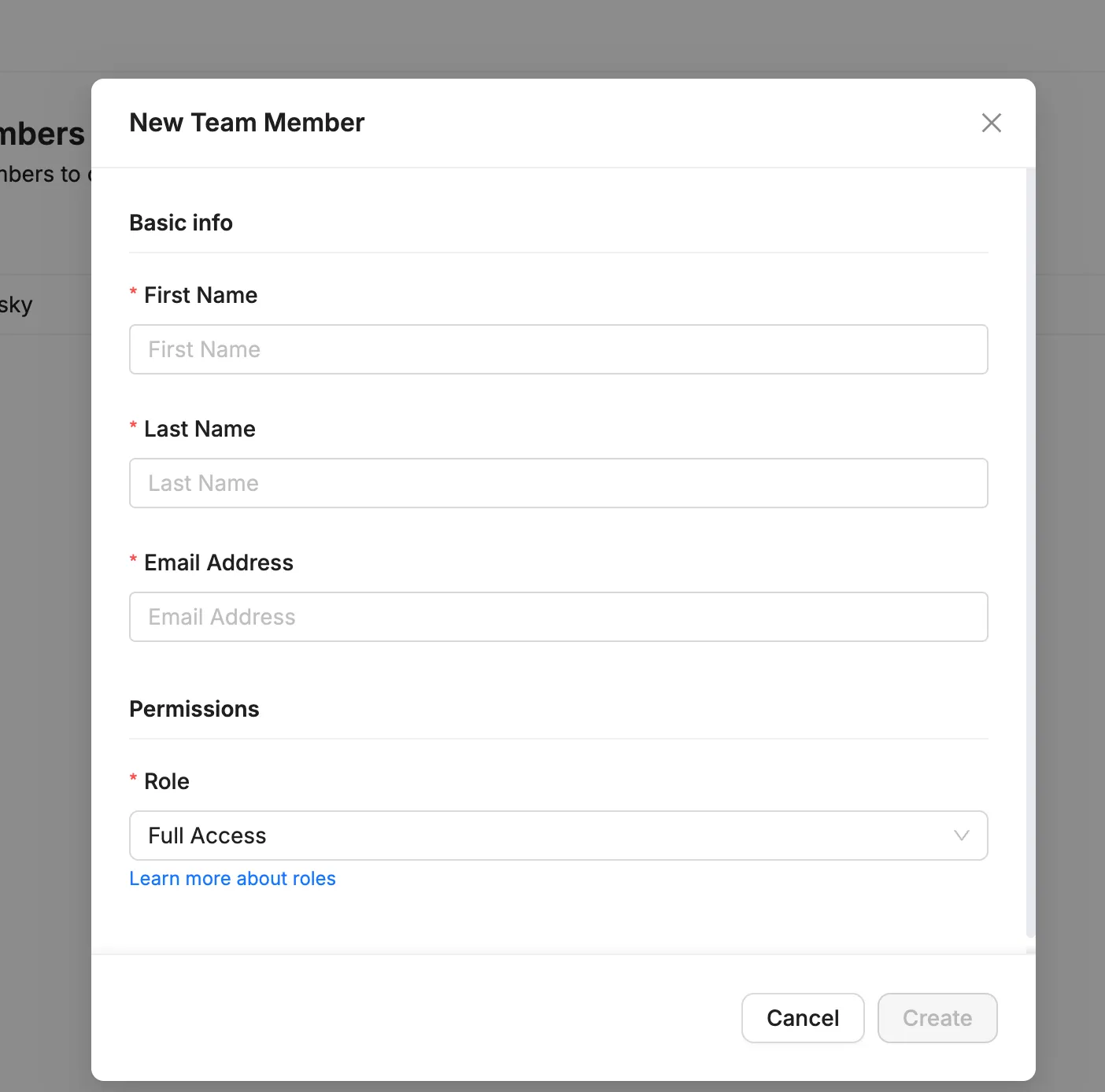
to manage your team's settings within your roster account, navigate to the team members section under brand settings this feature allows you to view and modify the roles and permissions of team members, ensuring that each member has the appropriate access to manage ambassadors effectively within team settings, you can add new members, assign roles, and adjust access scopes based on geographical regions or program involvement below, you'll find a detailed guide on how to navigate and utilize the team members settings in roster video walkthrough video transcript this is a transcript from the loom video walkthrough \[00 00] hey, this is jeff at roster in this video, we're going to take a look at your team member settings within your roster account and what some of the roles mean \[00 09] so, to get to the team members, you're going to click on your brand name or logo down in the bottom left hand navigation \[00 15] and in the fly out menu, you're going to select brand settings and when the brand settings modal opens up, select team members from the left navigation \[00 24] list all of your team members that have been added or given access to your account and it will also tell you when they were last active \[00 30] this is a demo account, so, um, there's no login date here but, if this was a real account, you would see when they last logged in or if they have never logged in \[00 39] so, if you are a team admin and you have seats available, you'll be able to add new team members by clicking the new team member button \[00 47] and then you'll simply just select the or enter their name, email, and then select which role you want to add them as \[00 53] here you can see i have three team members i have, uh, the team admin i have a full access use team member and i have a limited access team user \[01 03] so, in the new, um, team member modal, there's this learn more about roles and it will open up to an article that will probably a little different when you you're reading it but it gives a description on the three different roles \[01 16] but i want to show you actually what it is like logging in as somebody who has, well, actually let's go ahead and open up, um, click edit here on this user who has limited access so you can just see what that looks like \[01 32] limited access provides two sub settings you can and limit them by the country of where the ambassadors are so if you are working on like a geographically based, um, roster account where you maybe have north america in one program and you have latin america running as a separate program and maybe \[01 54] you have europe as another program, you can limit the country or countries that the ambassadors have to live in in order for those ambassadors to show up \[02 05] so if you're wanting to just have a team member manage just people in, say, your germany and italy based program, then you can select those two countries and the only ambassadors they'll be able to see and interact with in your roster account will be ambassadors who have those those \[02 24] countries set as their country in their address um, similar to country access, you can limit based on whole program level access \[02 32] so in this case, you can see that this team member is limited to just the ambassador's program and that means that if the ambassador is currently in a program or is currently has a pending or nominated application for this program \[02 48] then they will show up there's also a check box underneath that lets them manage and see and manage a contact who aren't in a program at all \[02 56] uh, by default, that is unchecked um, that goes the same with country access there's a check box that lets them see and manage contacts who haven't been assigned a country \[03 05] and that might be helpful because not everybody's been put into a country and their address and not everybody's been put into a program \[03 12] so maybe, it's okay if they see and manage those they're able to open up contact profiles for those people um, the biggest difference between the team member admin and the full access admin is team member can access all of these settings here and then all of the integrations \[03 29] and the full access has full access to all of the data that you would see, all the contacts, all the, campaigns, all that, but they don't have access to come into the team settings \[03 41] so that, those are the big differences but i do want to just, um, log in as a team member with limited access who just has access to one program to just show you what it is like \[03 54] so before i do that though, let me close out of the settings and you can see here, i'm logged in right now as a team member \[04 00] admins, so i can see all three programs when i come to contacts, i can see contacts across all the programs \[04 08] when i open up one of the program filters, i can see all the programs in the program filter so basically everything is here and visible and then the same goes with applicants \[04 18] so i'm going to pause this real quickly and then i'm going to log in as somebody who, umm, only has access to the, or has limited access set to one program \[04 31] alright okay, so now i'm logged in as a team member who only has access to, they have limited access role and that role is scoped just the ambassador program \[04 44] so you can see here when i come to the programs tab, they only can see the, the ambassador program, they can't access the settings \[04 52] and then when i come to the contacts, they only see contacts who are currently in the ambassador program and this, uh, first contact here isn't in the program, but they do have a pending application \[05 04] so they can also see applicants for that program and because i didn't check that box that lets them see contacts who aren't in any program, then i, i, i don't see anybody who's not in a program right now \[05 15] so everybody here is either in a program or is a pending applicant for a program so hopefully that makes sense \[05 24] um, it's definitely a useful feature if you want to give some access to your team members but want to limit the scope so that they kind of stay within the contacts and don't accidentally email or contact or invite ambassador \[05 36] there's two, there are campaigns when they're part of a different program or part of a different country region so, let us know if you have any questions about how team members work, how roles work \[05 48] if you have, um, any special requests, we always love to hear those so, in the meantime, we hope you have a great day \[05 54] thank you bye step by step instructions access the team members settings click on your brand name or logo located in the bottom of the left hand navigation in the fly out menu, select brand settings when the brand settings modal appears, choose team members from the left navigation view and manage team members on the team members page, you will see a list of all team members with access to your account along with their last login date if you're a team admin with available seats, click on new team member to add someone new enter their name , email , and select the desired role see /#team member roles explained below for more details assign sub settings for limited access team members click edit on a user with a limited access role to modify their permissions adjust country access select specific countries the team member can manage adjust program access limit access to ambassadors in specific programs review the contact visibility options check/uncheck boxes to allow managing contacts not assigned to a country or program team member roles explained team admin the team admin role provides access to all account data, brand settings , and integrations this role should only be granted to team members who need to manage brand level settings and integrations full access the full access role provides access to all account data, but restricts access to brand settings or integrations this is the default role when adding a new team member and is ideal for when team members don't need to manage brand level settings and integrations limited access similar to the full access role, the limited access role provides access to account data, limited to only viewing/interacting with ambassadors (contacts) who are in specific countries and/or specific programs this role is ideal when you want to prevent team members from inadvertently interacting with certain ambassadors, such as pro athletes, high level influencers, or ambassadors in countries outside of a team member's responsibilities need help? if you need any additional assistance with with your roster account, feel free to contact our support team at mailto\ support\@getroster com we're here to help!