
Wix tracking pixel instructions
When following these steps, some brands' developers have found it helpful to first review the Generic tracking pixel instructions and then comparing with the Wix-specific instructions in this guide.
This guide will walk you through the steps to install Roster's two tracking pixels, both of which are required to enable roster's sales attribution features, such as link tracking and referral commissions.
Google Tag Manager
We strongly discourage installing Roster's tracking pixels through Google Tag Manager (GTM). More and more browsers and extensions block GTM from loading, thereby blocking Roster's tracking pixels from working.
We recommend installing Roster's tracking pixels directly in your e-commerce platform or website's global theme/template.
Step 1: Get a public access API token
Each of the two tracking pixels require a public access token in order to securely send tracking data from a customer's browser to your Roster account. You can use the same public access token for both tracking pixels.
Log into your Roster account.
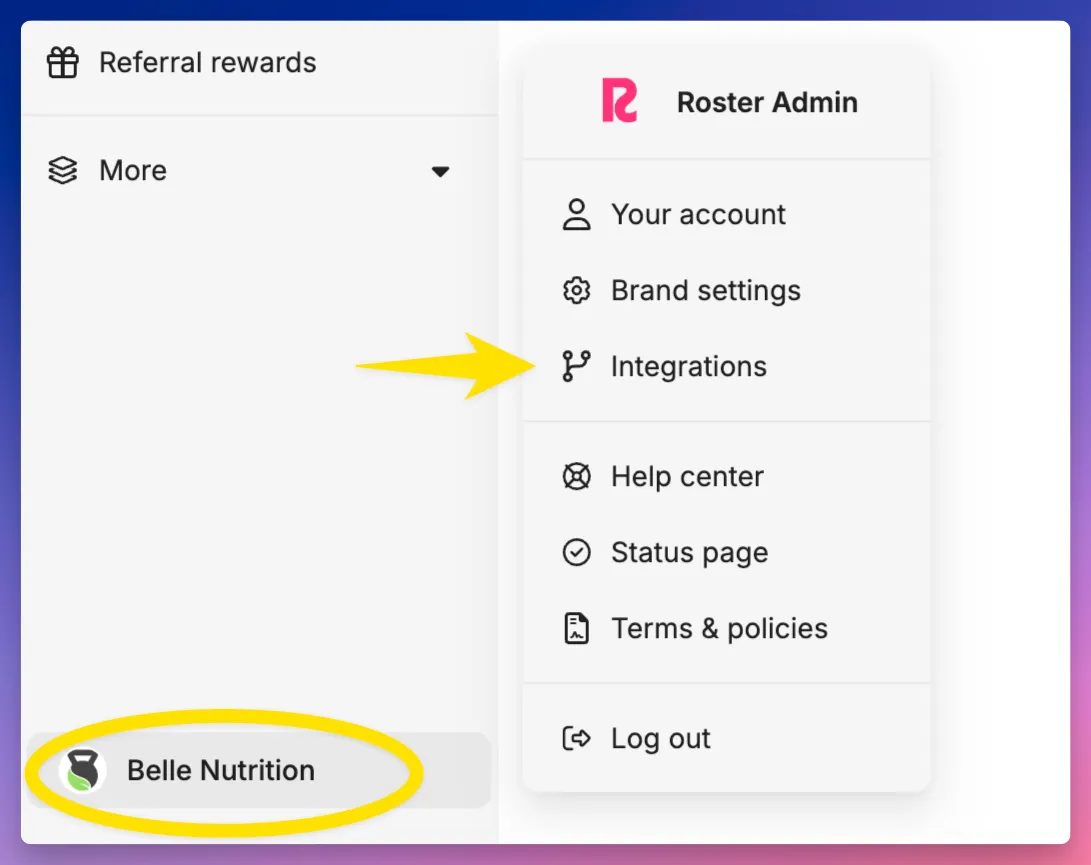
Go to the API integration page by clicking on your brand's name in the left-hand navigation, then Integrations > API integration
Copy the newest Public Access Token if one exists, or click New Access Token to create a new one.
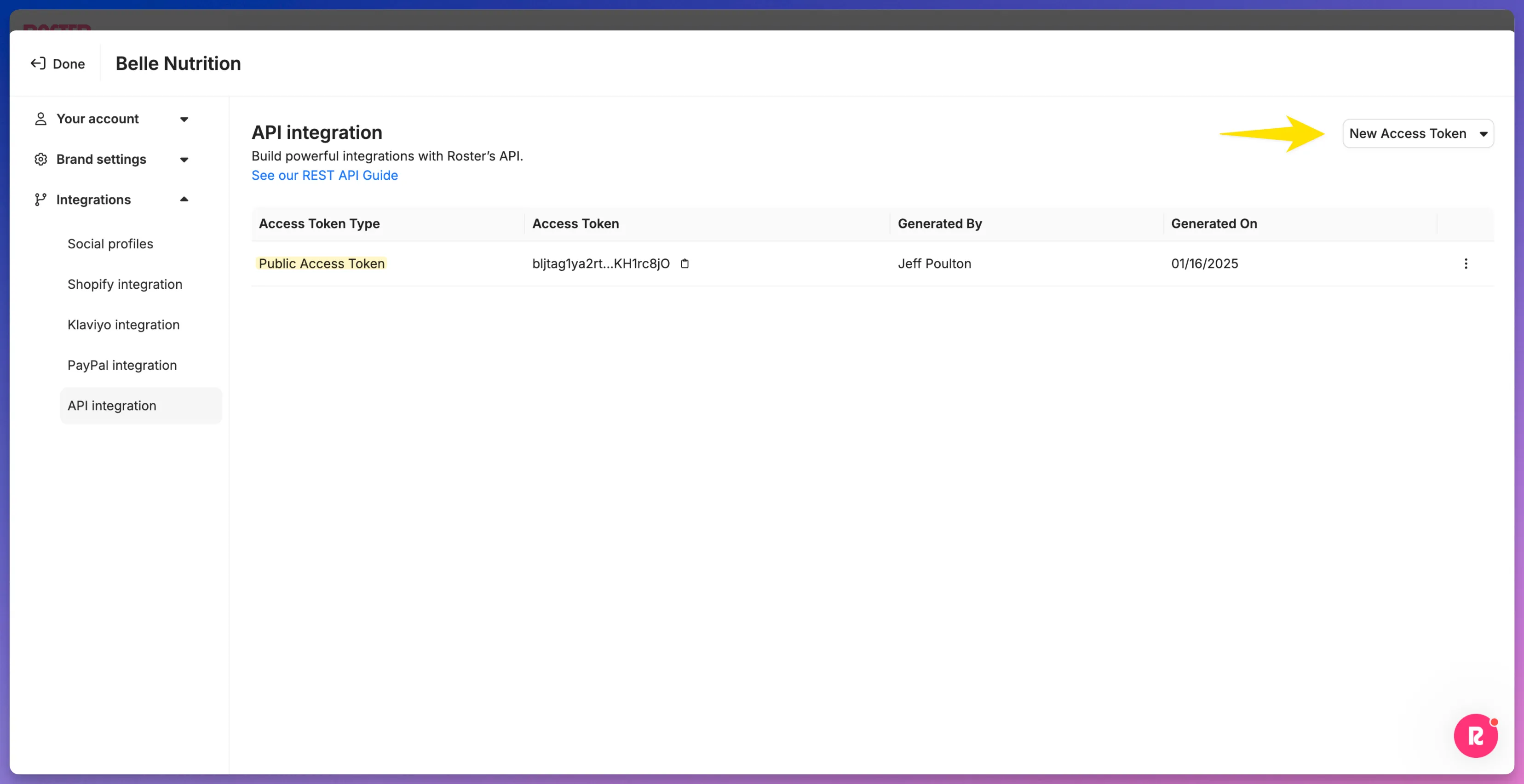
Never use Private Access Tokens with Roster's tracking pixels. Public Access Tokens are safe to use in a browser environment, but Private Access Tokens are only intended for server-side usage as they allow full access to all Roster API endpoints.
Step 2: Install the link tracking pixel
Roster's link tracking pixel tracks link clicks from ambassadors' referral links and stores ambassadors' referral link IDs in the browser to track subsequent purchases.
Ensure the person performing the following steps has admin access to your Wix account.
Log into your Wix admin account.
Navigate to Settings > Custom Code
Click Add Custom Code and enter the following values:
- Script name: Roster Link Tracking Script
- Add Code To Pages: All Pages
- Place Code In: Head
- Code Type: Analytics
Paste the following Javascript snippet into the custom code text area
<script type="text/javascript">
  window.roster = {
    config: {
      token: 'PUBLIC_ACCESS_TOKEN',
      forceShareableCodeFetch: true
    },
    onClickTracked: function() {
      // Optional callback. See table below for details.
      console.log('Click tracked');
    },
    onCodeRetrieved: function(discountCode) {
      // Optional callback. See table below for details.
      console.log('Discount code:', discountCode);
    },
    onError: function(error) {
      // Optional callback. See table below for details.
      console.error('Roster pixel error:', error);
    }
  };
</script>

<script async type="application/javascript"
src="https://cdn.rostercdn.com/sa.js"></script>Replace PUBLIC_ACCESS_TOKEN in the Javascript tag with the Public Access Token from Step 1 above.
Save the changes you made to the script.
Verify the link trakcing pixel.
After your have published the changes to your storefront or website, verify that link tracking is working by using an ambassador's referral link from your Roster account.
See Verify installation with Roster's Chrome Extension to speed up the verification process using Roster's Chrome browser extension.
Step 3: Install the order tracking pixel
Roster's order tracking pixel is an order-aware Javascript pixel that needs to be installed on the order confirmation page (the page that loads immediately after a customer completes a purchase.)
In Wix, create a shared secret
From your Wix dashboard go to Developer Tools at the bottom of the left nav bar and select Secrets Manager.
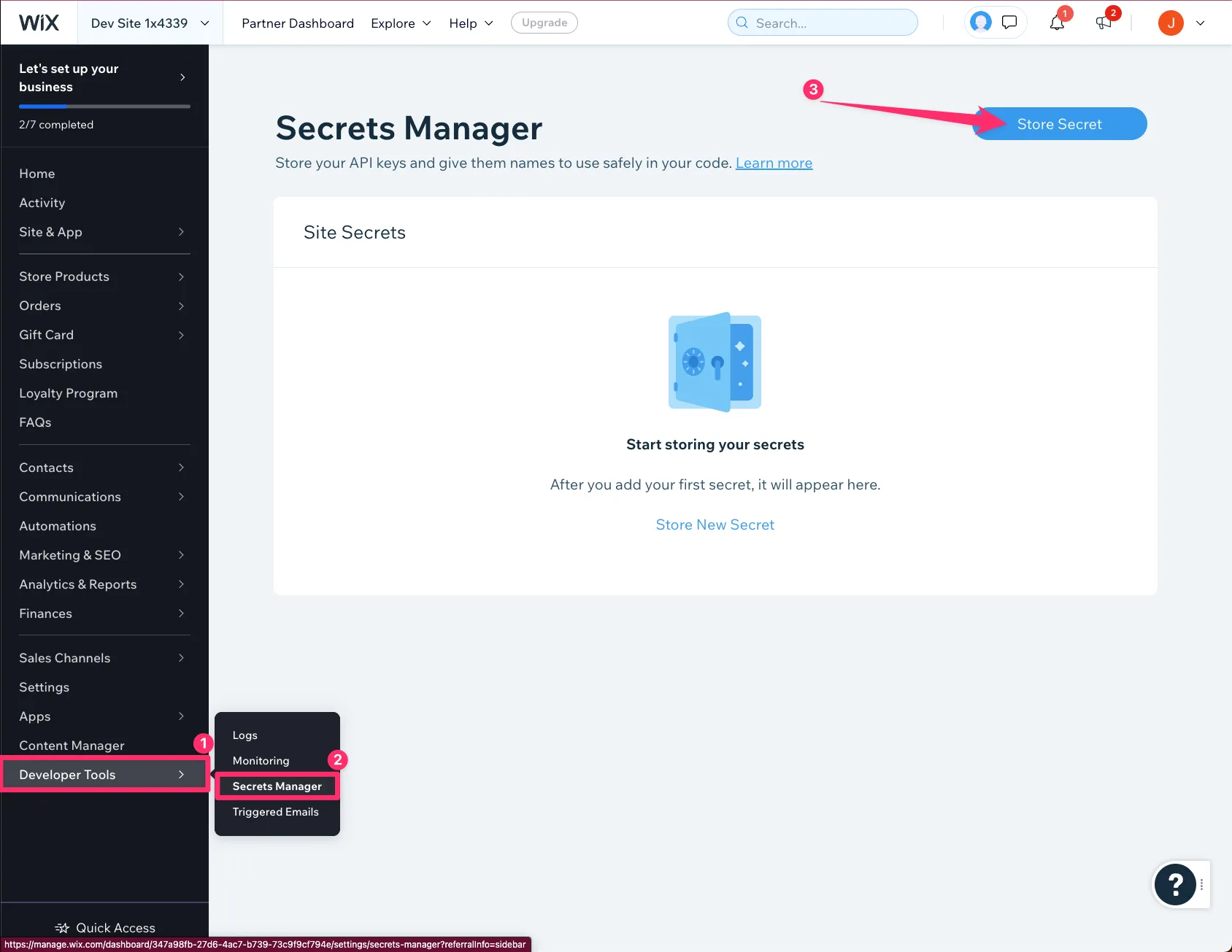
Once in the Secrets Manager select Store Secret in the top corner. Give it the name RosterApiKey
Paste in the Roster Public Access token you created in Step 1
Add the tracking script to the Thank You page
- From the Home tab in Wix click on Edit Site in the top right corner.
- Once you're inside the edit mode ensure that Dev Mode is turned on by clicking Dev Mode in the top nav bar and clicking Turn on Dev Mode
- In the left nav bar find the Shop folder then click into the Thank You Page.
- Copy/paste the script below into Thank You Page.
The element with the id #myThankYouPage is the default name for the entire page so that should be left as-is unless it has been renamed in your store.
// Velo API Reference: https://www.wix.com/velo/reference/api-overview/introduction

import {captureOrder} from 'backend/roster.jsw'
import {local} from 'wix-storage';

$w.onReady(function () {
      $w('#myThankYouPage').getOrder()
      .then((order) => {
            const orderId = order._id;
            const orderNumber = order.number.toString();
            const orderDate = order._dateCreated;
            const discountCodes = [order.discount.appliedCoupon.code];
            const currency = order.currency;
            const subtotalPrice = order.totals.subtotal.toString();
            const totalPrice = order.totals.total.toString();
            const customerId = order.buyerInfo.id;
            const firstName = order.billingInfo.firstName;
            const lastName = order.billingInfo.lastName;
            const email = order.billingInfo.email;
            const referalId = local.getItem("wReferrerId");

            const payload = JSON.stringify({
            "externalOrderId": orderId,
            "externalOrderNumber": orderNumber,
            "orderDate": orderDate, // Format: YYYY-MM-DDT00:00:00
            "customer": {
                  "externalCustomerId": customerId,
                  "firstName": firstName,
                  "lastName": lastName,
                  "emailAddress": email
            },
            "referralLinkId": referalId,
            "discountCodes": discountCodes,
            "currency": currency,
            "subtotalPrice": subtotalPrice,
            "totalPrice": totalPrice
            });

      return captureOrder(payload);
})
.then((captureResponse) => {console.log(captureResponse)})
.catch((error) => {
      console.error(error);
});
});Update the masterPage.js file
To ensure the ReferrerId is included in the order submission payload, add the following code to masterPage.js:
// The code in this file will load on every page of your site

import {local} from 'wix-storage';
import wixLocation from 'wix-location';

$w.onReady(function () {
  const referrerId = wixLocation.query.rstr;
  if(referrerId) {
    local.setItem("wReferrerId", referrerId);
  }
});Create a backend Web Module
- Click into Public & Backend.
- On the left side of the screen hover over Backend and click the + that appears.
- Then click New Web Module and in the input field type roster.jsw.
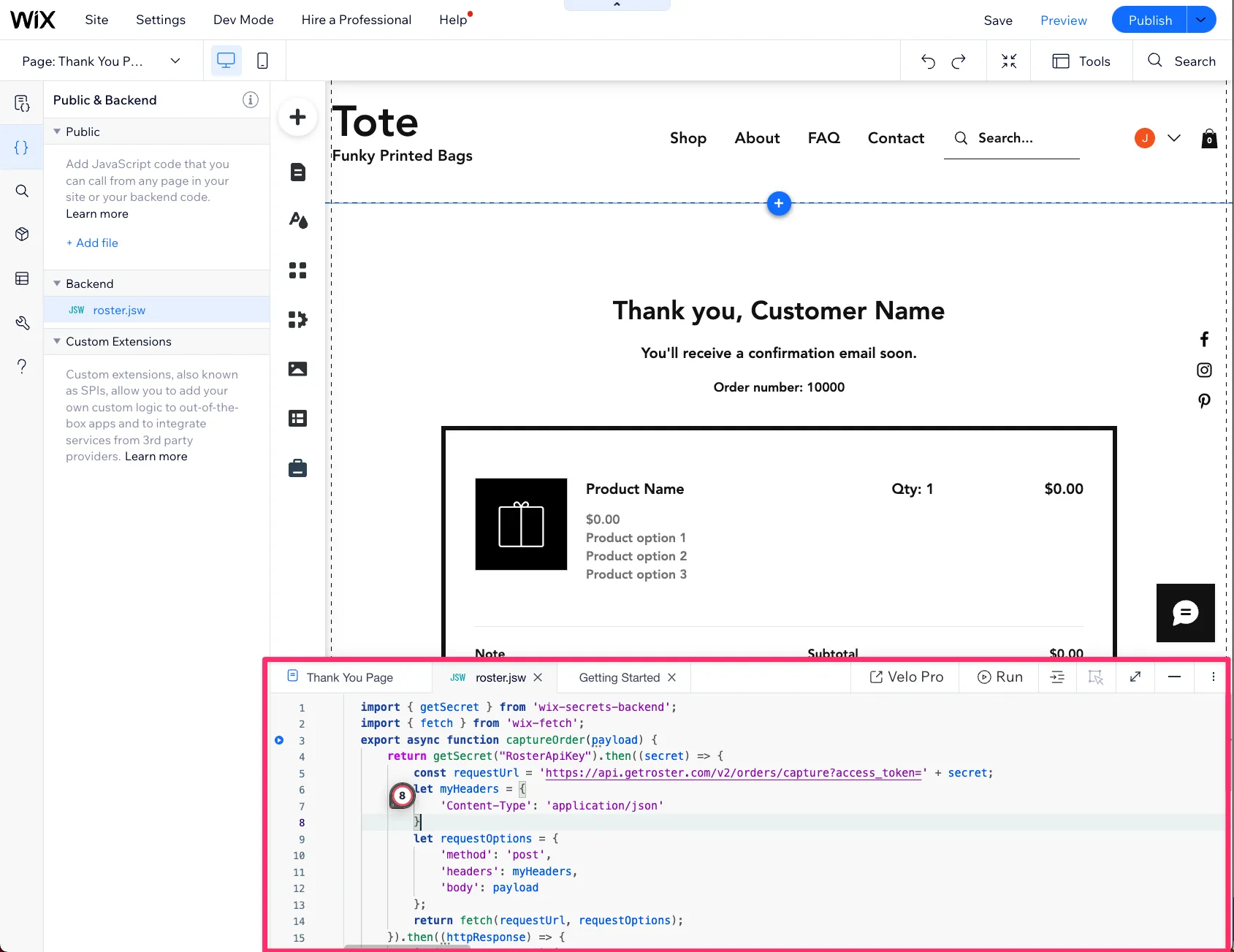
- Copy the code below and paste it in the roster.jsw file.
import {getSecret} from 'wix-secrets-backend';
import { fetch } from 'wix-fetch';

export async function captureOrder(payload) {
      return getSecret("RosterApiKey")
      .then((secret) => {
            const requestUrl = 'https://api.getroster.com/v2/orders/capture?access_token=' + secret;
            let myHeaders = {
                  'Content-Type': 'application/json'
            }
            let requestOptions = {
                  'method': 'post',
                  'headers': myHeaders,
                  'body': payload
            };
            return fetch(requestUrl, requestOptions);
      })
      .then((httpResponse) => {
            if (httpResponse.ok) {
                  return httpResponse.json();
            } else {
                  return httpResponse.json()
                  .then((httpResponseBody) => {return Promise.reject(httpResponseBody)})
            }
      })
      .catch((err) => {return Promise.reject(err)});
}When you are finished the result should look like this:
Step 4: Verify the installation process
It's imperative that you test the link tracking and order tracking upon completing the above steps.
See Verify tracking pixel installationVerify tracking pixel installation for a video walkthrough and detailed steps and Verify installation with Roster's Chrome Extension.
Need help?
If you have any questions about adding hidden products to product rewards, contact us at [email protected].