
Verify installation with Roster's Chrome Extension
The Roster Pixel Validator is a free Chrome extension that reads your browser's state to diagnose pixel installation, referral tracking, and discount code issues — without requiring developer tools or technical expertise. It gives you instant visibility into whether your pixel is installed, whether referral clicks are being tracked, and whether discount codes are functioning correctly.
The Roster Pixel Validator is available for Google Chrome only. It's free, requires no account, and does not modify any data on your site — it only reads browser state.
How to install
- Visit the Roster Pixel Validator listing on the Chrome Web Store.
- Click Add to Chrome and confirm the installation.
- Once installed, pin the extension to your Chrome toolbar for easy access by clicking the puzzle piece icon in the toolbar and clicking the pin icon next to Roster Pixel Validator.
If you plan to test referral links while in the browser's incognito mode, you will need to enable the extension to work in incognito mode. See Extensions in Incognito Mode.
Using the extension
To use the Roster Pixel Validator, navigate to any page on your brand's storefront in Chrome and click the extension icon in your toolbar.
Overview
By default, only the overview panel is displayed.This panel provides the core details you need to verify that your pixel has been installed correctly
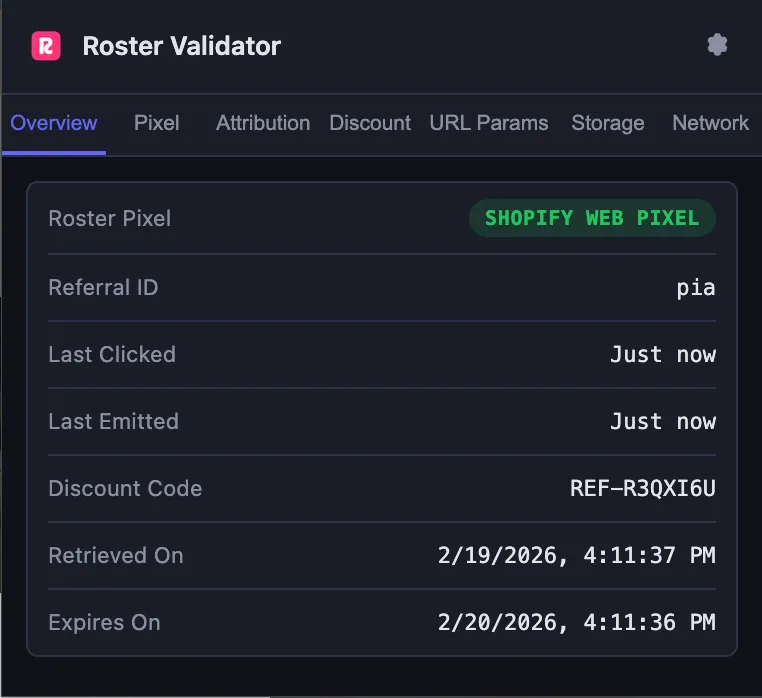
Reset browser to test a new link
It's important that you reset the browser if you want to test a different ambassador's link.
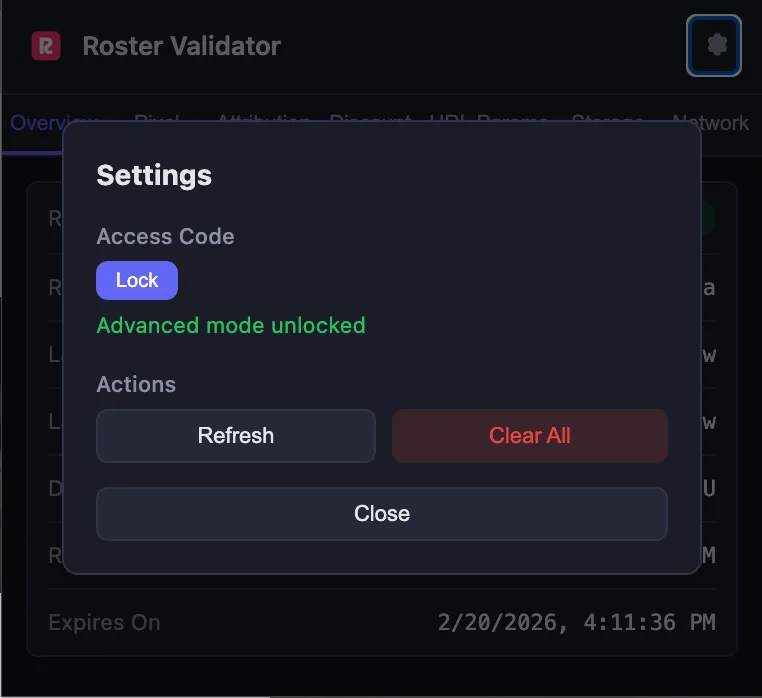
- Click the Settings icon in the extension popup.
- Click the Clear All button.
This will remove all of the roster tracking information from the browser's local storage and cookies, allowing you to test a different link.
Unlock Advanced Features
The fully unlocked extension displays several additional diagnostic panels that give you a complete picture of your pixel's health.
- Click the Settings icon in the extension popup.
- Enter rosterpixel in the Access Code field.
- Click Unlock
- You should now see the following additional tabs:
- Pixel
- Attribution
- Discount
- URL Params
- Storage
- Network
Pixel Detection
This panel shows whether Roster's tracking pixel is installed on the current page, which pixel variant is in use, and its load status.
- Detected — The pixel is installed and loaded correctly.
- No pixel found — The pixel is not detected on the current page. This could mean it hasn't been installed, or the page you're viewing doesn't have it.
- Legacy pixel detected — An older version of the tracking pixel is installed. It may still work, but we recommend upgrading to the latest version.
Attribution Window
This panel shows whether a referral click is currently being tracked in the browser and how much time remains in the attribution window.
- ACTIVE — A referral click is being tracked and the attribution window is open. Orders placed now will be attributed to the referring ambassador.
- EXPIRING SOON — A referral click exists but the attribution window is close to expiring.
- EXPIRED — The attribution window has passed. New orders will not be attributed to a referral link.
- No referral click — No referral click has been recorded in this browser session. This is normal if you haven't clicked an ambassador's referral link.
Discount Code Health
This panel shows whether a discount code is cached in the browser and its current state.
- Fresh — A discount code is cached and ready to be applied at checkout.
- Stale — A discount code is cached but may be outdated. The code will still be attempted at checkout.
- Expired — The cached discount code has expired and will likely not apply at checkout.
- No code cached — No discount code is stored in the browser. This is normal if the customer hasn't visited a smart link with leakproof codes enabled.
This panel also checks the Shopify session cookie status, which can affect whether discount codes are applied during checkout.
URL Parameters
This panel shows referral and UTM parameters detected on the current page URL. Look for the rstr parameter (the ambassador's tracking code) and any UTM parameters configured in your program settings.
Network Activity
This panel shows recent API calls made by the Roster tracking pixel, along with success or failure indicators. Use this to confirm that the pixel is communicating with Roster's servers when pages load.
Related articles
- Pixel tracking installation — Install the link and order tracking pixels on your ecommerce platform.
- Verify tracking pixel installation — Step-by-step manual verification using test orders.
- Troubleshooting referral tracking issues — Diagnose link tracking and order tracking issues.