BRAND SETTINGS
Configure EMV rates
4 min
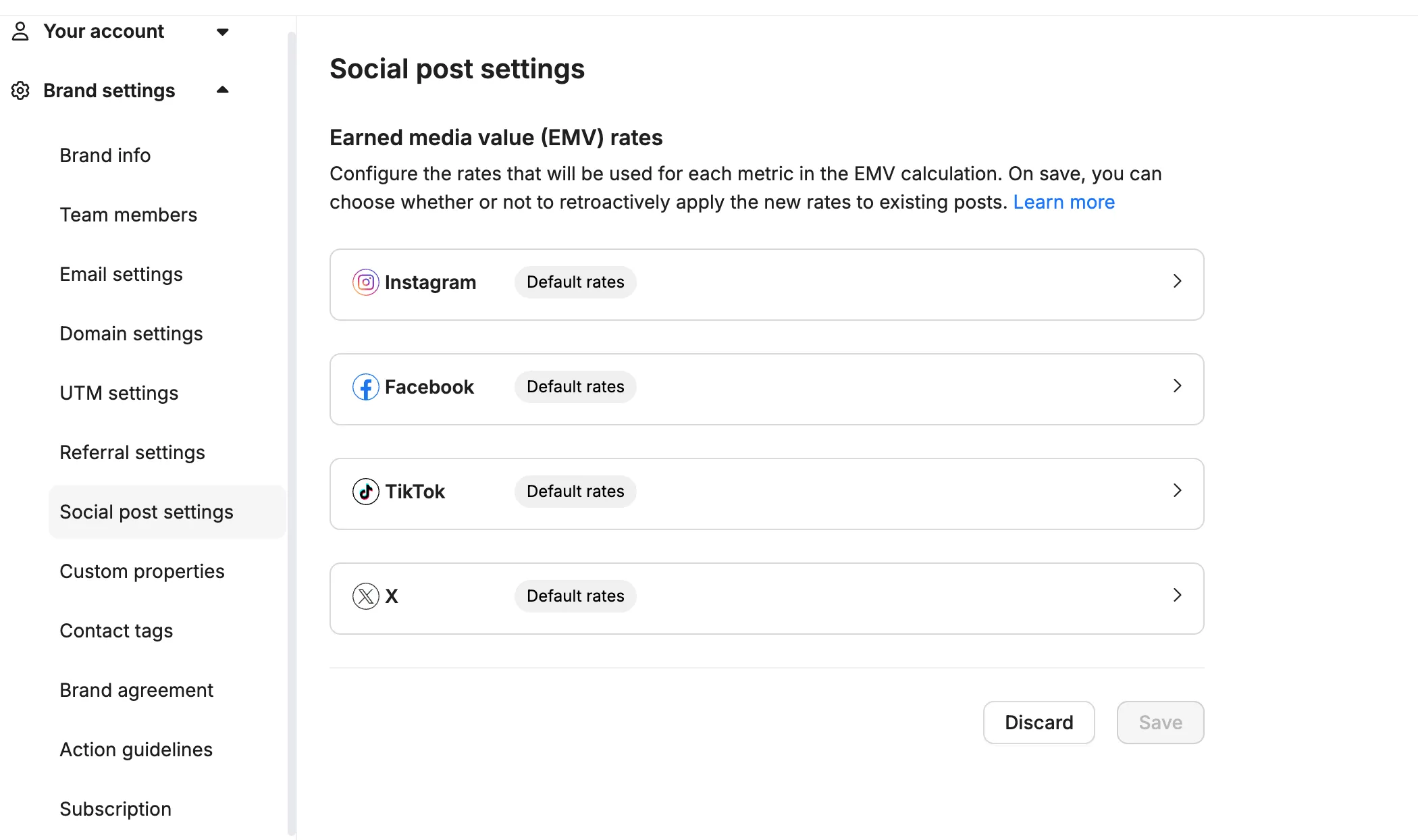
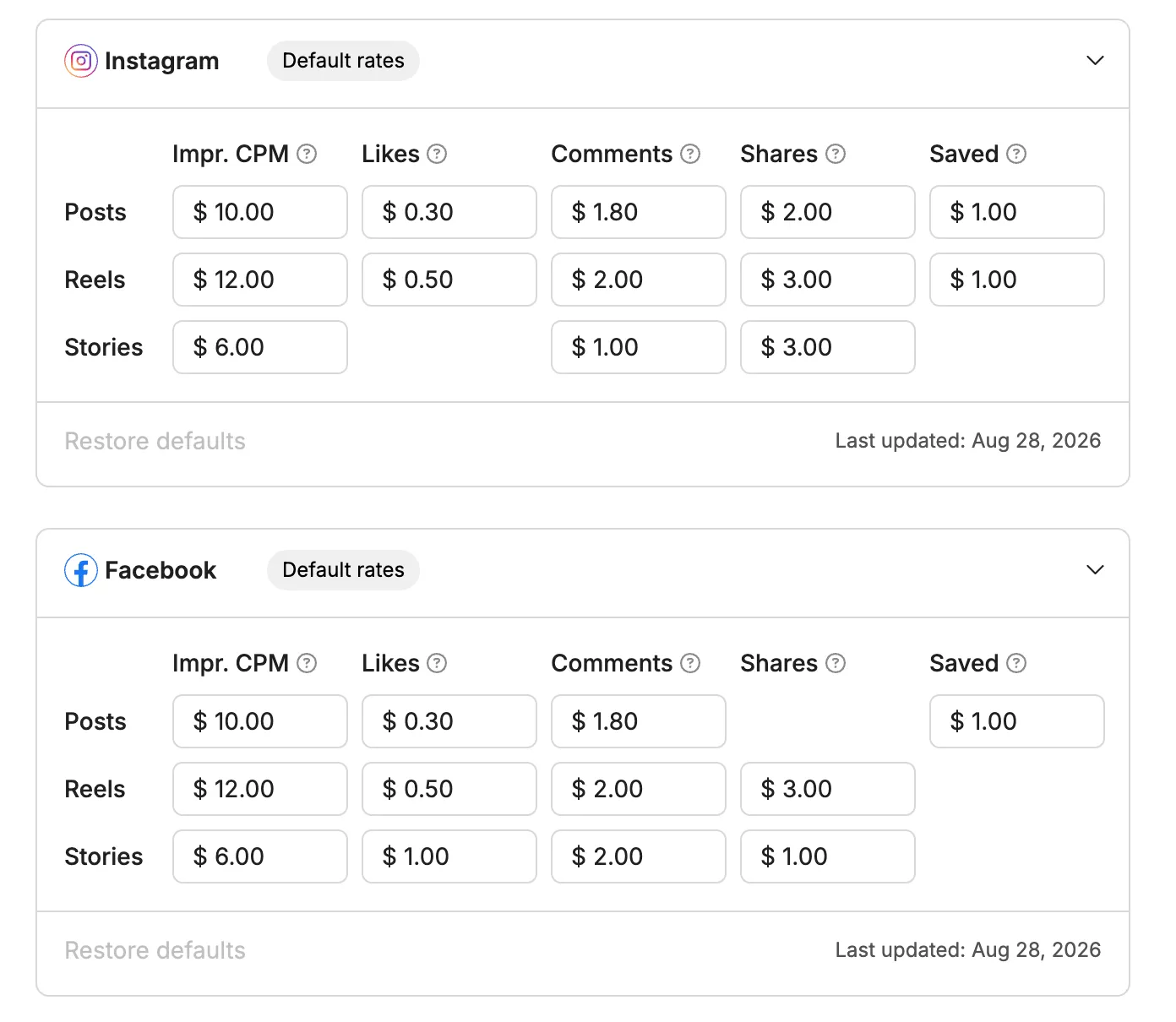
customizing earned media value (emv) rates in roster allows brands to tailor the calculation of emv to better reflect their unique marketing valuations by default, roster uses the industry standard ayzenberg method for calculating emv based on impressions, likes, comments, shares, and saves however, these rates can be customized to align with specific brand strategies and priorities below, you will find a guide on how to adjust these settings within roster's brand portal video walkthrough video transcript this is a transcript from the loom video walkthrough \[00 00] hey there, this is jeff at roster in this video, i'm going to talk to you about the erm media value rates and how you can change those to customize the rates that you might be using with your, uh, maybe your marketing team has specific rates they want to use or somebody in your organization has some \[00 16] rates you want to use to start with, let's look at the erm media value on a social postcard, you can hover over this number down in the bottom right \[00 24] below the, uh, thumbnail of the post and it will give you a breakdown of how the erm media value is calculated for the post \[00 31] in this case, it looks like it's largely coming from impressions and then there's some likes and comments so, um, these all have different rates that are used \[00 41] it's a very industry standard set of a formula called the eisenberg method and the rates are pretty standard that we ship with, but you can come in and customize these rates to something that makes sense for your brand \[00 54] so, let's go ahead and take a look at how we do that to customize the emv rates, we're gonna come down here and click on your brand in the bottom left hand corner and then click on brand settings \[01 05] and then from in brand settings, you'll see an option called social post settings and when you open this up, you're gonna see that the there are rates for the different social networks \[01 16] and if i expand this, then the instagram rate, for example, you can see that there are three different types of posts \[01 24] we have posts, reels, and stories and then for each post type, we have the available erm, e value rates, the components \[01 34] so the first one is the impressions uhh, cpm and this is how much value is attributed to the post for every 1,000 impressions \[01 46] and then we have the next four are engagement metrics and these, this is how much value is accrued for each engagement \[01 55] so, uh, for each like of an instagram post, in this example, it was, you get 30 cents worth of value \[02 02] for each comment, it would get $1 80 for shares, $2, and every time somebody saves a post, they get, it, it, it, it, it, it, it, tributes, excuse me, $1 value \[02 14] these are, again, kind of the industry standards, but you're welcome to change these if you guys place a lot more value on stories, for example, and you want to set that to 10, you can update that \[02 24] yeah, and then when you start updating values, prior to saving it, they'll highlight in yellow to indicate that there's some unsafe changes \[02 33] you can click this little restore icon with inside of a value you've changed, and it will set it back to the default \[02 41] and then once you have made all the changes that you want, you can click save and when you click save, i just want to, i'm going to point out there will be a notification to the top, tell you that your rates were successfully updated, and there's a link up here that says apply retroactively \[02 57] if you click that apply retroactively link, it'll open up a little dialogue, and it will ask you if you want to schedule an update \[03 07] so what this will do is that it will update all of your existing, er, media value, ,to numbers for posts going back through january 1st, 2024 \[03 18] so you might, your brand in particular might not have posts that go that far back in roster, and likewise, your brand might have posts that go beyond that, but in this case we just simply update posts as far back as january 1st, 2024 \[03 35] if you have, ,needs that go back beyond this date, then reach out to our support team, and we can work on updating those older posts \[03 44] so, when i click schedule update, it's going to schedule that to run overnight it might take a little while but you'll notice when i clicked schedule that i now have a little banner showing up here telling me that the emv rates are going to be applied retroactively at 2 30 a m \[04 00] eastern time and there's an option here to cancel that scheduled update, so maybe i don't want to do it you can continue to make changes while that is scheduled, and that's totally fine \[04 11] it will simply just queue up those changes, um, to be applied, uh, at this scheduled time you'll notice, too, once i start making and saving changes to the default rates, the little label that , previously said, default rates will change to custom rates, and it will indicate that these rates are now \[04 30] customized for our brand if for any reason you want to reset all of the defaults for a specific network, like in this example, if i wanted to reset instagram back to the default rates in roster, i can click restore defaults, and it will set them all back, um, and then i just need to click the save button \[04 48] , and , now the instagram network, uh, you can see is back to default rates so that is basically how the rates work in roster \[04 57] once you make the changes, then anything will, um, any new calculations that happen will use these rates so let us know if you have any questions about making changes to your earned media value rates, or how they apply \[05 11] there's a link here that gives you more information about, um, earned media value and rates as well as linking to how we calculate the impressions and reach data when a post doesn't provide, or the network doesn't provide that for a given post \[05 28] so there's some helpful information there but in the meantime, thanks for checking this out and let us know if you have any questions \[05 35] alright, so yeah step by step instructions access brand settings click on your brand in the bottom left hand corner select brand settings from the menu navigate to social post settings in the brand settings section, locate and click on social post settings you will see the emv rates for different social networks customize emv rates for instagram expand the instagram section to view emv rates for posts , reels , and stories adjust the rates for each metric impressions (cpm) value assigned per 1,000 impressions likes value accrued per like comments value accrued per comment shares value accrued per share saves value accrued per save changes will highlight in yellow, indicating unsaved changes save changes and apply retroactively click save to confirm your rate changes a notification will appear, confirming the updates to apply changes retroactively, click the apply retroactively link in the dialogue, schedule the update for posts as far back as january 1st, 2024 if needed, contact support for updates beyond this date manage custom and default rates to reset a network (e g , instagram) to default rates, click restore defaults save changes to revert the rates to default custom rates are indicated with a custom rates label need help? if you need any additional assistance with with your roster account, feel free to contact our support team at mailto\ support\@getroster com we're here to help!