Social Post Requirements
3 min
Quick Rules Overview
- Confirm your social accounts are connected within your Roster account. Check here.
- It can take up to 24 hours for Roster to automatically pick up your post.
- If your social account is private, then Roster will not be able to pull in your post automatically. Look for the "Refresh" button within the activity to pull it in on-demand.
- Also check to make sure your post is within the campaign's start and end dates.
Still having issues? Read below for posting guidelines and examples:
1. Check to make sure your post includes all the activity requirements and is posted on the correct social platform
Find the campaign requirements as well as the required #hashtag and @mention to use within the Activities tab of the campaign.
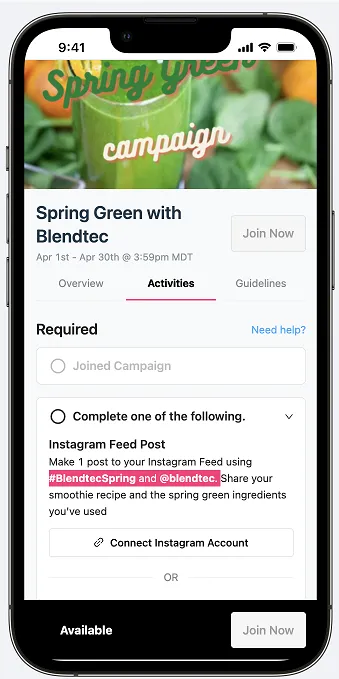
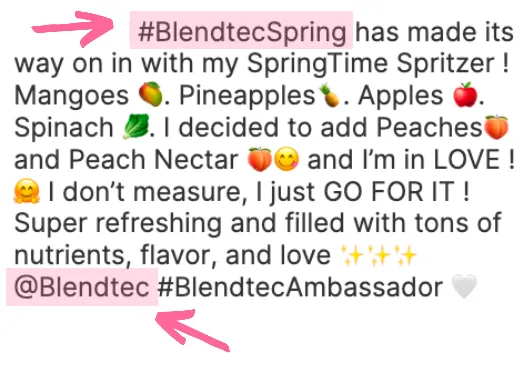
- Did you correctly @mention the brand's social handle and include the required #hashtag listed in the activity? You must @mention the brand and and include the required #hashtag in the caption (not hidden in a comment) in order for your post to be counted:
- See this help article for more details.
- If you posted prior to the launch date, the post may not be eligible.
3. Is the post from a social account connected in Roster?
- To confirm your social connections within your Roster account, check here.
- If your social connection was missing and now you've added it, allow up to 24 hours to see your post(s) pulled in.
4. Is your social account private?
- In order for Roster to pick up your private social post, please read what you'll need to ensure that your account is connected to Roster (see #3 above) AND that you click the refresh icon next to the campaign activity within Roster.